 Providing resources Providing resourcesTask list Traditional learning
As class sizes continue to grow, the work load increases and the time you have to teach each lesson seems to get shorter. Often students struggle with the work in class and have to put in hours of additional work at home just to understand the concept. Other students find the material easy to grasp, then become bored or distracted while you help the other students.
 FirstClass ED is a resource provider FirstClass ED is a resource providerFirstClass ED provides a class area called Resources. You can use this area to provide extra materials for students, such as
• tutorials to help students grasp concepts
• web sites where they can find more information
• practice work
• suggested readings
• advanced work to provide more of a challenge
• extra credit work
• guidelines for parents to help their children.
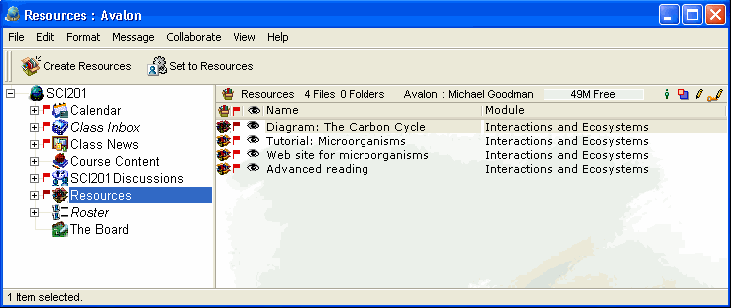
This example shows how a teacher uses the Resources area of his class to provide additional information to students.
 Creating a new resource
To create a new resource:
1 Click Create Resources.
2 Choose the type of resource you wish to create and click OK.
3 Complete the Name, Module, and Publishing Control fields of the Resource form, and add any attachments if prompted.
4 Add content to the document and click OK.
For information about adding information to standard FirstClass documents, click here.
 Note NoteIf you wish to maintain drafts of resources, set them to unpublished until you are ready to share them.
Publishing/hiding a resource
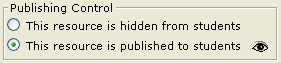
To publish/hide a resource, open the resource and choose the corresponding radio button in the envelope field.
  Shortcut ShortcutClick the Published field (
 ) directly on the pane for the corresponding resource. ) directly on the pane for the corresponding resource. | ||